

Key Takeaways
- SSDs use flash memory with no moving parts; HDDs use spinning magnetic platters to read and write data.
- SSDs typically load programs and boot operating systems significantly faster than HDDs.
- HDDs generally offer more storage capacity per dollar, making them common for bulk file storage.
- SSDs are more resistant to physical shock and drops because they have no mechanical components.
- Many modern computers use an SSD as the primary drive and an HDD for extra storage.
Option A
SSD (Solid-State Drive)
The faster, more durable modern standard.
Best for: Everyday users who want a responsive, quiet computer that boots and loads programs quickly.
Option B
HDD (Hard Disk Drive)
The high-capacity, budget-friendly legacy option.
Best for: Users who need to store large volumes of files — like videos or archives — and are less concerned about speed.
If you want a faster, more responsive everyday computing experience
SSD (Solid-State Drive)
SSDs dramatically reduce boot times and program load times, making the entire system feel snappier for daily tasks like browsing, writing, and multitasking.
If you need to store large amounts of data on a tighter budget
HDD (Hard Disk Drive)
HDDs offer substantially more storage capacity at a lower cost per gigabyte, making them well-suited for archiving videos, photos, and large file collections.
If you use a laptop and care about battery life and durability
SSD (Solid-State Drive)
Without spinning parts, SSDs consume less power and are far less vulnerable to damage from bumps or drops — key advantages in a portable device.
If you're building a desktop and want the best of both worlds
SSD (Solid-State Drive)
Pair a smaller SSD for your operating system and applications with a larger HDD for file storage to balance speed and capacity cost-effectively.
What's Actually Inside Each Drive
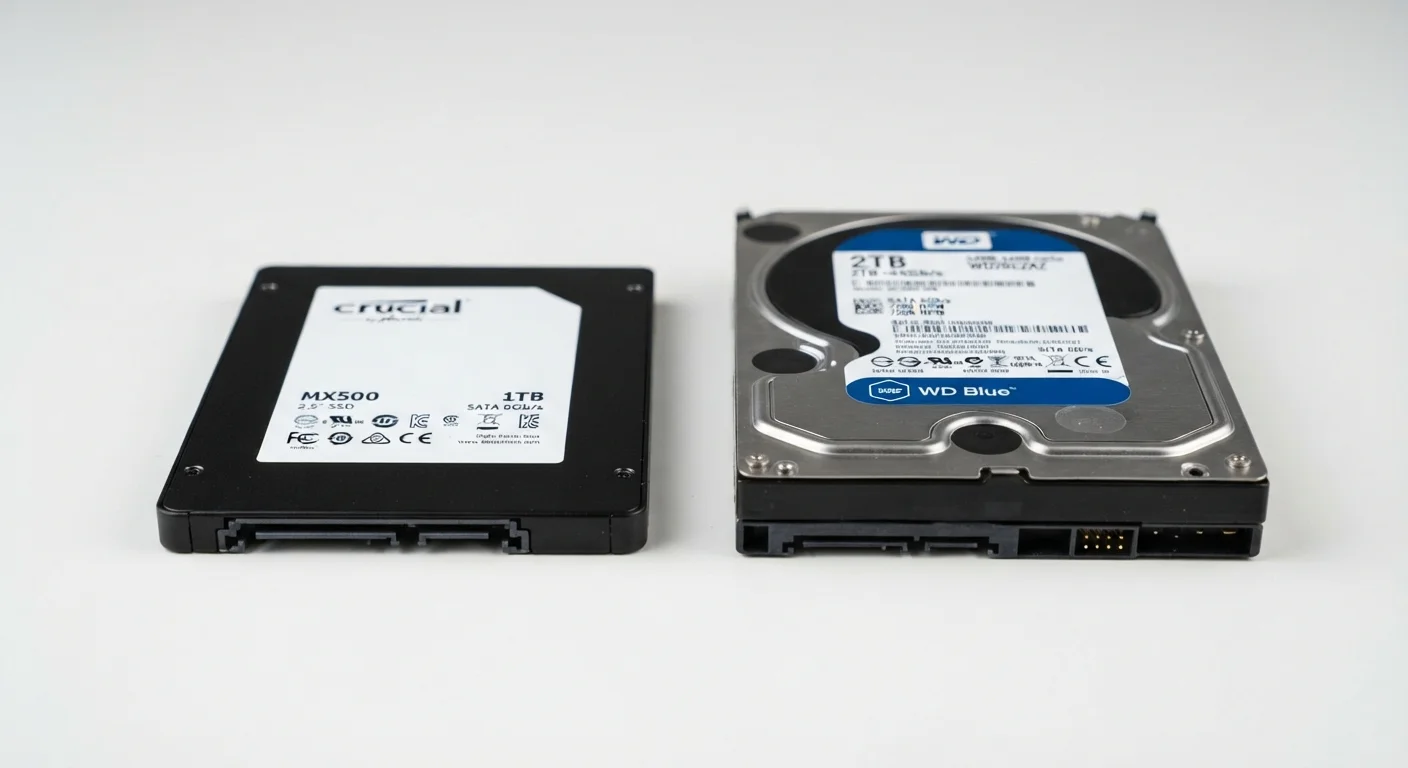
A hard disk drive (HDD) stores data on spinning magnetic platters. A tiny mechanical arm moves across the platters to read and write information — similar in principle to how a record player works. Because it has physical moving parts, an HDD takes a small but measurable amount of time to position that arm correctly before accessing data.
A solid-state drive (SSD) stores data on interconnected flash memory chips — the same general technology used in USB thumb drives, just faster and more sophisticated. There are no moving parts at all. When your computer needs data, the SSD retrieves it electronically, almost instantaneously.
This fundamental mechanical difference is the root cause of nearly every practical distinction between the two. For a broader look at how storage fits into the full picture of laptop specs, see our guide to what laptop specs actually mean.
| Criterion | SSD | HDD |
|---|---|---|
| Technology | Flash memory, no moving parts | Spinning magnetic platters |
| Typical Read Speed | 500–3,500+ MB/s | 80–160 MB/s |
| Boot Time | Under 15 seconds (typical) | 45–60+ seconds (typical) |
| Cost Per Gigabyte | Higher | Lower |
| Durability | More resistant to drops and shock | Vulnerable to physical impact |
| Noise | Silent | Faint clicking or humming |
| Power Consumption | Lower (better for battery life) | Higher |
| Common Use Case | OS, apps, everyday computing | Bulk file and media storage |
Speed, Durability, and Everyday Feel
The speed difference between SSDs and HDDs is not subtle. A typical HDD might read data at around 80–160 MB/s. A mainstream SATA SSD commonly reaches 500–550 MB/s, and faster NVMe SSDs — a newer interface standard — can exceed 3,000 MB/s. In practical terms, this means an operating system that takes 45–60 seconds to boot on an HDD may start up in under 15 seconds on an SSD.
Program launches, file searches, and general system responsiveness all reflect this gap. If a computer has ever felt sluggish despite having adequate RAM, an aging HDD is often part of the reason.
3–6×
Speed advantage of SATA SSDs over HDDs
Mainstream SATA SSDs commonly reach 500–550 MB/s sequential read speeds, compared to 80–160 MB/s for typical consumer HDDs.
~15 sec
Typical SSD boot time for Windows
Systems running a modern operating system from an SSD commonly reach the desktop in under 15 seconds, versus 45–60 seconds or more on an HDD.
No moving parts
Key durability advantage of SSDs
The absence of mechanical components makes SSDs significantly more resistant to damage from drops or vibration compared to HDDs.
Durability is another area where SSDs have a structural advantage. Because HDDs rely on spinning platters and a moving read/write arm, they are vulnerable to damage from sudden jolts or drops — a meaningful concern for laptops. SSDs have no such fragile components, making them more resilient in mobile use.
SSDs also run silently and generate less heat, while HDDs emit a faint clicking or humming sound during operation that some users notice in quiet environments.
Storage Capacity and Cost Considerations
HDDs still hold a meaningful advantage in one area: cost per gigabyte. At any given price point, an HDD will typically offer more raw storage capacity than an SSD. This makes HDDs a practical choice when the goal is storing large video libraries, photo archives, or long-term backups rather than running an active operating system.
SSD prices have fallen substantially over time, and drives in the 500GB–1TB range are now common in mainstream laptops and desktops. For most users' day-to-day file needs, this capacity is sufficient. Consumers who work with large media files may find a higher-capacity HDD — or a combination of both drive types — more economical.
It's worth noting that storage capacity on a computer works somewhat differently from storage on a phone. For context on thinking through how much storage space you actually need, our article on phone storage explained covers the underlying logic in an accessible way.
External Drives Follow the Same Rules
The SSD vs. HDD distinction applies equally to external storage. External SSDs are faster and more durable for transferring files on the go, while external HDDs offer more capacity at a lower price point for home backups and archives. The right choice depends on whether speed or volume is your priority.
Which Drive Type Is Right for Your Setup
For most everyday computing tasks — web browsing, document editing, video calls, streaming — an SSD will produce a noticeably more responsive experience. The performance gap is significant enough that many users who upgrade from an HDD-based system to an SSD-based one describe the computer as feeling like a completely different machine.
HDDs remain relevant as secondary or external drives for archiving data, and in budget desktop systems where maximum storage capacity is the priority over speed. Some desktop setups use an SSD as the primary drive (where the operating system and applications live) alongside a larger HDD for storing files — capturing the speed benefits of an SSD while keeping storage costs manageable.
If you're still deciding between a laptop and a desktop, the storage drive is just one factor worth examining. Our overview on choosing between a laptop and desktop walks through the broader tradeoffs.