

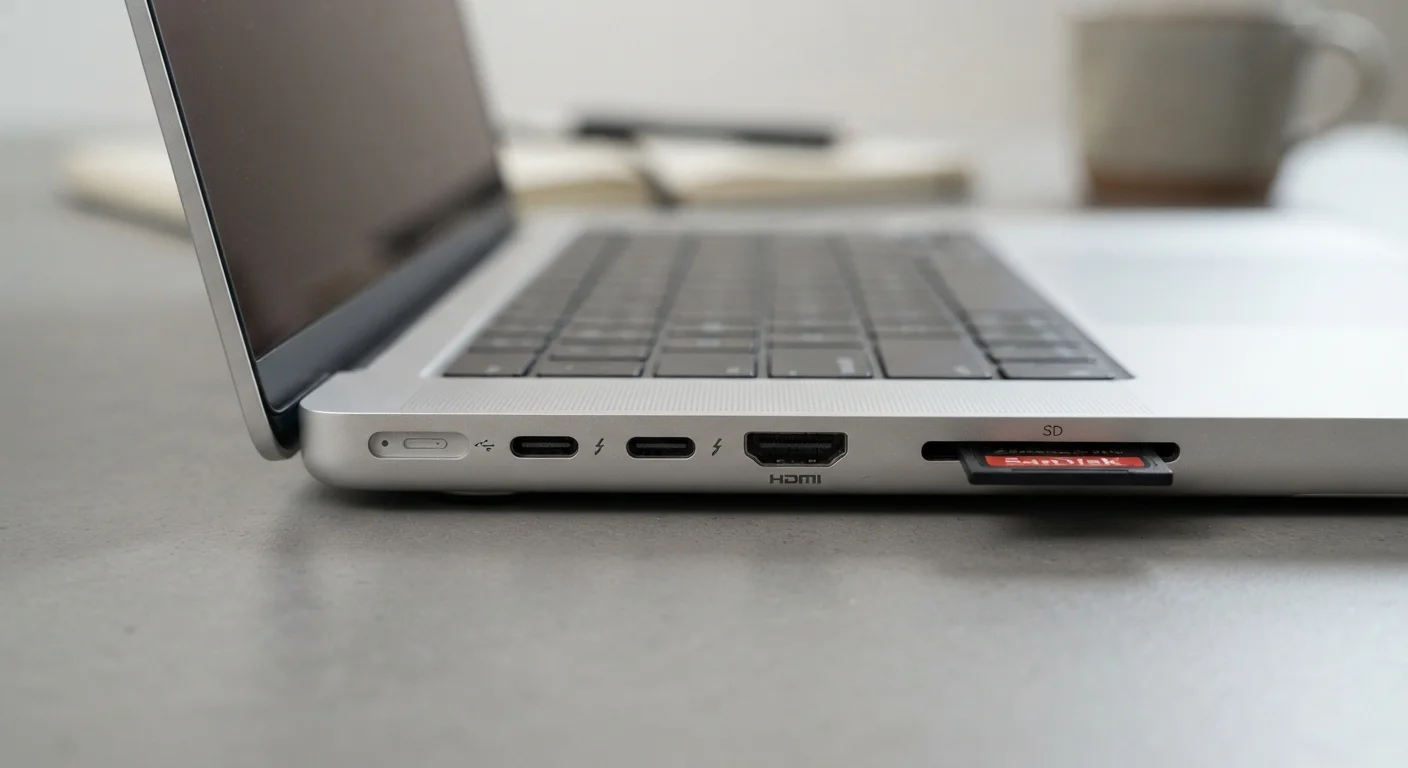
| Most common port type | USB-A (rectangular) |
| Fastest standard laptop port | Thunderbolt 4 (up to 40 Gbps) (Intel Thunderbolt specification) |
| Video output options | HDMI, USB-C/Thunderbolt (with adapter or native) |
| Port for cameras/drones | SD card slot or USB-A (with card reader) |
| Wired internet port | Ethernet (RJ-45) — often absent on slim models |
| Audio port standard | 3.5mm headphone/mic combo jack |
Why Laptop Ports Still Matter
Laptops have gotten thinner, but the world around them hasn't changed as fast. Projectors in conference rooms still use HDMI. Cameras still use SD cards. Older peripherals still use USB-A. Understanding what each port on your laptop actually does — and which ones you might miss when they're absent — is a practical skill that saves money and frustration.
If you're weighing whether a laptop suits your workflow, matching specs to your actual tasks is a good place to start. Ports are part of that picture. This guide breaks down every common port type in plain language so you can read a spec sheet confidently.
| Most common port type | USB-A (rectangular) |
| Fastest standard laptop port | Thunderbolt 4 (up to 40 Gbps) (Intel Thunderbolt specification) |
| Video output options | HDMI, USB-C/Thunderbolt (with adapter or native) |
| Port for cameras/drones | SD card slot or USB-A (with card reader) |
| Wired internet port | Ethernet (RJ-45) — often absent on slim models |
| Audio port standard | 3.5mm headphone/mic combo jack |
Port-by-Port Breakdown
Here's what each common port does and when you'll actually encounter it:
USB-A
The classic rectangular port most Americans recognize immediately. It connects flash drives, older mice, keyboards, phone chargers, and hundreds of accessories. Still the most widely compatible port type in everyday use, though it doesn't carry video or fast charging on its own.
USB-C
Smaller, oval-shaped, and reversible — meaning no wrong way to plug it in. USB-C is the current industry standard for data transfer, charging, and video output, but with a catch: the connector looks the same regardless of what it can actually do. A USB-C port on a budget laptop may only support charging, while the same-shaped port on a higher-end machine might transfer data at 40 Gbps and push a 4K display. Always check the spec sheet, not just the port count.
Thunderbolt (3 and 4)
Thunderbolt uses the USB-C physical shape but adds Intel's protocol on top, enabling extremely fast data transfer (up to 40 Gbps), daisy-chaining multiple monitors, and connecting external GPU enclosures. A lightning bolt icon — sometimes with a number — identifies it on the chassis. Not every USB-C port is Thunderbolt, but every Thunderbolt port works as USB-C.
USB-C
A small, oval, reversible connector used for charging, data transfer, and video output. The physical connector looks identical across devices, but the capabilities vary significantly by port and device.
Thunderbolt
Intel's high-speed protocol that uses the USB-C connector. Thunderbolt ports support data transfer up to 40 Gbps, multiple 4K displays, and external GPU enclosures — capabilities standard USB-C cannot match.
Gbps
Gigabits per second — a unit measuring data transfer speed. Higher Gbps means faster file transfers and better support for high-resolution video output through a single cable.
Daisy-Chaining
Connecting multiple devices in a chain from a single port, rather than using a separate port for each. Thunderbolt supports daisy-chaining monitors and storage devices.
USB Hub / Dock
An accessory that expands one USB-C or USB-A port into multiple port types (HDMI, SD card, Ethernet, USB-A, etc.). Useful when a laptop lacks built-in ports you need.
Power Delivery (PD)
A USB-C standard that allows a port to charge a laptop or device. A USB-C port without PD support can transfer data but may not charge the device connected to it.
HDMI
The trapezoidal port familiar from TVs and monitors. HDMI lets you connect an external display or projector without adapters. Most laptops carry a standard full-size HDMI port; ultra-thin models often use Mini HDMI. The version number matters: HDMI 2.0 and later supports 4K at 60 Hz, which is relevant if you use a high-resolution external monitor.
SD Card Slot
A flat slot that accepts SD or MicroSD cards directly from cameras and drones. Photographers and videographers find this port essential; without it, you'll need a USB card reader dongle. Many thin laptops have dropped it entirely, so it's worth checking if your workflow involves moving files from a camera regularly.
3.5mm Audio Jack
The small round port for headphones and microphones. Despite its age, it remains broadly useful — standard wired headsets, studio monitors, and recording interfaces often rely on it. Some ultrabooks have removed it in favor of Bluetooth-only audio, which may or may not suit your needs. For a deeper look at how all laptop specs fit together, including connectivity, that guide covers the full picture.
Ethernet (RJ-45)
A wider rectangular port for a physical network cable. Wired connections are faster and more stable than Wi-Fi, which matters for video calls, large file transfers, or remote work in buildings with crowded wireless networks. Many slim laptops omit Ethernet entirely; a USB-C-to-Ethernet adapter solves this when needed.
Reading the Symbols and Making Sense of Your Needs
Port symbols can look cryptic, but most follow a consistent logic: the USB trident (a branching symbol) marks USB ports, a lightning bolt marks Thunderbolt, the HDMI port is usually unlabeled but distinctively shaped, and a headphone silhouette marks the audio jack. SD card slots are typically labeled "SD" directly on the chassis.
When evaluating a laptop, count ports by type and ask a practical question: what do you plug in regularly? Remote workers who use external monitors need at least one HDMI or a capable USB-C port. Photographers need an SD slot or USB-A for a reader. Gamers or video editors benefit from Thunderbolt for high-bandwidth accessories. If you're still deciding between form factors, thinking through tablet vs. laptop tradeoffs also touches on how connectivity differs between device types.
40 Gbps
Max Thunderbolt 4 data transfer speed
Per Intel's Thunderbolt 4 specification, a single port can transfer a 100GB file in roughly 20 seconds.
1 port
Minimum USB-C ports on many ultrabooks
Several popular thin-and-light laptop designs ship with a single USB-C/Thunderbolt port, making the quality of that port especially important.
One practical tip: a laptop with fewer built-in ports isn't necessarily a deal-breaker if a quality hub or dock covers the gap — but budget for that accessory upfront. A USB-C hub can add HDMI, USB-A, SD card, and Ethernet from a single port, which is why the quality of that single USB-C port (its speed and power delivery rating) matters so much. For display-related decisions that pair with port selection, understanding display specs rounds out the picture.