

Key Takeaways
- Back up your old phone before starting any transfer to avoid permanent data loss.
- Android and iPhone offer built-in migration tools that handle most data automatically.
- Switching between platforms requires extra steps, especially for messages and purchased apps.
- Some data — like banking app settings and two-factor authentication — must be set up manually.
- Verify everything transferred correctly before wiping or trading in your old device.
What you will need
Why Phone Transfers Go Wrong — And How to Avoid It
Most data migration problems come down to one of three issues: skipping the backup step, assuming all data transfers automatically, or wiping the old phone too soon. Understanding what moves on its own versus what needs manual attention puts you in control of the process.
Contacts, photos, and basic app installations generally migrate well using platform tools. What often doesn't: app-specific settings and saved data, authenticator codes, offline content (downloaded podcasts, music, or ebooks), and in-app purchases tied to a single platform's account.
If you're considering upgrading soon, it's worth reading how long smartphones typically last to understand whether an upgrade is actually due — or if a software refresh might extend your current device's useful life.
What you will need
What You'll Need Before You Start
Having the right tools and information ready before you begin prevents frustrating mid-transfer interruptions. Gather everything listed below — especially your account credentials, which people often store only on the device they're about to migrate away from.
Apple iCloud or iTunes/Finder
Creates a full backup of iPhone data including contacts, photos, app data, and settings.
Google One Backup
Backs up Android contacts, apps, call history, and device settings to your Google account.
Move to iOS app (Android only)
Apple's official app for migrating content from an Android phone to a new iPhone.
USB-C or Lightning cable with adapter
Enables wired data transfer between devices for faster, more reliable migration.
External storage or computer
Provides an additional local backup location for photos and documents before switching.
If you're preparing a used or refurbished device as your new phone, first run through these checks for secondhand phones to make sure the device is clean, carrier-unlocked, and ready to receive your data.
Step-by-Step: Moving Your Data
Follow these steps in order. Skipping ahead — especially past the backup and verification stages — is where most migration problems originate.
Public Wi-Fi Is Not Safe for Transfers
Never perform a phone migration on a public or shared Wi-Fi network. Use your home network or a personal mobile hotspot. Transferring data over unsecured networks creates unnecessary exposure for your personal files and account credentials.
Back up your old phone completely
Before touching anything else, create a full backup. On iPhone, go to Settings → [Your Name] → iCloud → iCloud Backup and tap Back Up Now. Alternatively, connect to a Mac or PC and use Finder (macOS Catalina and later) or iTunes to create a local backup.
On Android, go to Settings → System → Backup and ensure Google One Backup is turned on and has completed a recent sync. Also manually back up your photos to Google Photos if you haven't already.
Choose your transfer method
Your options depend on which platforms you're moving between:
- iPhone to iPhone: Use Quick Start (hold phones near each other during setup) or restore from an iCloud/iTunes backup.
- Android to Android: Most manufacturers offer a built-in setup wizard that transfers data over Wi-Fi or a cable. Google's built-in restore handles apps, contacts, and settings automatically.
- Android to iPhone: Download the Move to iOS app on your Android device before starting iPhone setup. It migrates contacts, message history, photos, and some app data.
- iPhone to Android: Google Drive can transfer contacts and photos. Message history migration is limited — some third-party apps claim to bridge this gap, but review them carefully before granting account access.
Transfer your data
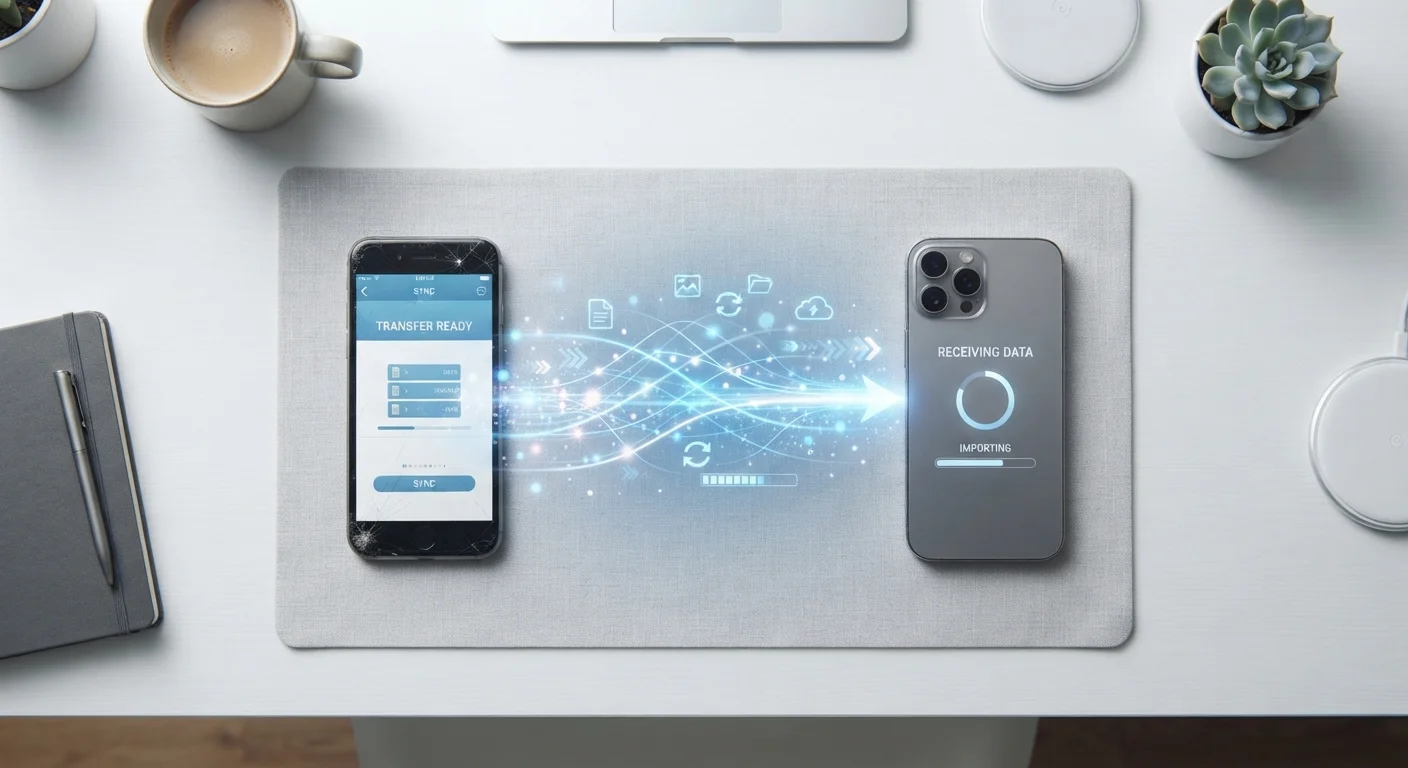
Follow the on-screen prompts during new phone setup to initiate the transfer. Keep both phones plugged in and on Wi-Fi throughout — large transfers (especially photo libraries) can take 20–45 minutes or longer depending on data volume.
If you're using a wired connection, a USB-C to USB-C cable (or an appropriate adapter) generally speeds up the process significantly compared to Wi-Fi transfer.
Re-authenticate sensitive apps manually
Banking apps, authenticator apps (like Google Authenticator or Authy), and some two-factor authentication (2FA) tools do not transfer automatically — this is intentional for security reasons. You'll need to log back into each one individually.
For authenticator apps specifically, set up the new device before removing the old one so you can use existing codes to verify sign-ins. Transfer your 2FA accounts within the app if it offers that feature, or use backup codes from each service.
Verify everything transferred correctly
Go through this checklist on your new phone before moving on:
- Scroll through Contacts to confirm they're all present.
- Open Photos and spot-check recent images and albums.
- Check your Messages app for recent conversations.
- Open a few key apps and confirm login and settings are intact.
- Test your email accounts for connectivity.
If anything is missing, your old phone backup is still intact — don't wipe the old device until you're confident everything is in order.
Securely erase your old phone
Once you've confirmed everything is working, perform a factory reset on the old device to protect your personal data. On iPhone, go to Settings → General → Transfer or Reset iPhone → Erase All Content and Settings. On Android, go to Settings → General Management → Reset → Factory Data Reset.
Sign out of your Apple ID or Google account before resetting if prompted, and remove the SIM card first. This step is especially important if you're selling, trading in, or donating the old phone.
Don't Wipe Your Old Phone Too Soon
Factory resetting your old device before verifying the transfer is complete can result in permanent data loss. Backups are not always 100% complete, and some app data cannot be recovered once the source device is wiped. Keep your old phone intact and accessible until your new phone is fully operational.
Set Up Backups on Day One
Once your new phone is running, immediately enable automatic backups so future transfers are even easier. Both iCloud and Google One can be set to back up daily over Wi-Fi while charging. Making this a habit means you'll never start a migration from scratch again.
Once everything is confirmed on your new device, you're part of a broader ownership journey — from setup to maintenance to eventual resale. The complete phone owner's roadmap covers everything that comes next.