

Key Takeaways
- Heat is a laptop's biggest long-term enemy — managing airflow adds meaningful years to hardware life.
- Battery health degrades faster when routinely charged to 100% and kept there; moderate charge levels help.
- Keeping storage at least 15–20% free prevents performance slowdowns tied to low disk space.
- Software hygiene — updates, startup management, and malware scans — matters as much as physical care.
- A few minutes of physical cleaning every few months prevents dust-related thermal throttling.
Why Longevity Habits Matter More Than Hardware
A laptop's lifespan isn't determined entirely at the factory. The way it's used, stored, and maintained plays a substantial role in how well it performs at year three compared to year one. Most premature slowdowns and failures trace back to correctable habits rather than inevitable hardware decay.
For consumers who view a laptop as a multi-year investment, building a small set of consistent routines is far more cost-effective than replacing hardware early. This is especially true given that even mid-range laptops can disappoint quickly when they aren't given basic care. The practices below address the most common failure points.
Thermal Management: Keeping Heat Under Control
Heat is the single largest accelerator of hardware aging in laptops. Processors, memory, and storage components all degrade faster when they operate at sustained high temperatures. Fans and cooling vents exist precisely to prevent this, but they rely on unobstructed airflow.
Always use your laptop on hard, flat surfaces to ensure unobstructed airflow.
Soft surfaces block bottom vents, causing internal temperatures to rise sharply. Sustained heat accelerates wear on the CPU, GPU, and storage components, shortening their effective lifespan.
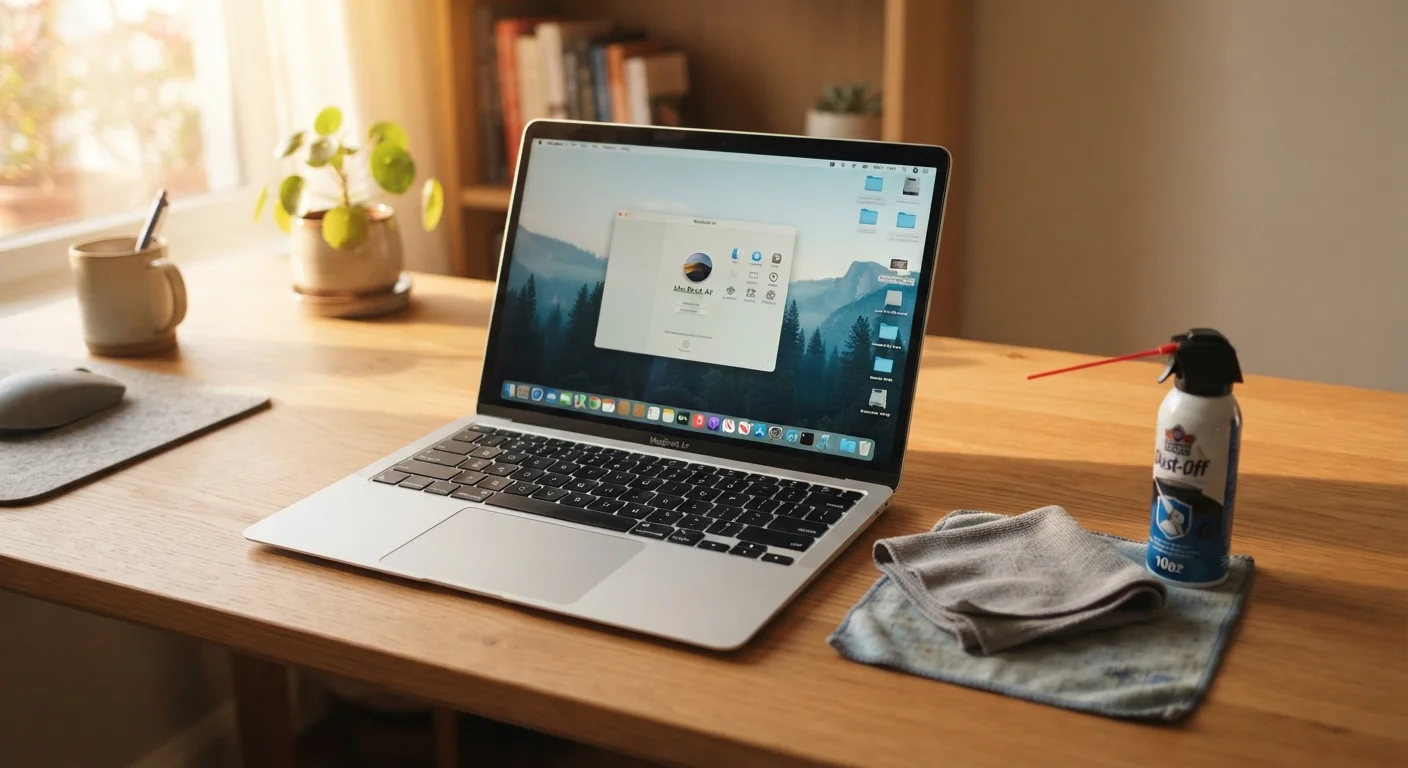
Use compressed air to clear dust from vents every three to four months.
Dust accumulation on fans and heatsinks reduces cooling efficiency, leading to thermal throttling and sustained high temperatures. Regular cleaning restores proper airflow without requiring professional service.
Enable your laptop's battery charge-limit or care mode if the device is frequently kept plugged in.
Sustained 100% charge combined with heat puts ongoing stress on lithium-ion cells, accelerating capacity loss. Capping charge at 80% has been shown to meaningfully extend cycle life over time.
Audit and disable unnecessary startup programs every few months.
Applications frequently add themselves to the startup queue during installation without clear user prompts. Each additional startup item extends boot time and consumes background memory during normal use.
Keep at least 15–20% of drive storage free at all times.
Operating systems require free space for temporary files, system updates, and virtual memory operations. A drive that is nearly full forces the OS to work inefficiently, creating noticeable slowdowns.
Using a laptop on soft surfaces — beds, couches, laps covered in fabric — can block bottom vents and cause temperatures to spike within minutes. Hard, flat surfaces allow airflow to reach intake vents. Elevated stands improve this further.
Dust accumulation inside the chassis is the other thermal culprit. Even in a clean environment, fine particulates build up on fan blades and heatsink fins over months. A can of compressed air directed through vents every three to four months helps prevent the thermal throttling (where the processor automatically slows itself to cool down) that users often mistake for a failing machine.
Battery Practices That Preserve Long-Term Capacity
Lithium-ion batteries — used in virtually all modern laptops — have a finite number of charge cycles before their capacity noticeably declines. While cycle count is unavoidable, the depth and frequency of those cycles affect how quickly degradation happens.
~500
Typical lithium-ion full charge cycles before noticeable capacity loss
Battery University and most laptop manufacturer documentation cite 300–500 full cycles as a general threshold where capacity decline becomes measurable.
10–15°C
Temperature rise caused by blocked laptop vents
Independent thermal testing commonly shows internal temperature increases of this magnitude when airflow is obstructed by soft surfaces versus hard surfaces.
Keeping a battery perpetually at 100% while plugged in generates heat and sustains voltage stress on cells. Many laptop manufacturers now include charge-limit settings in system software (often called "battery care mode" or similar) that cap charging at 80%, specifically to reduce this strain. Enabling this feature when the laptop primarily stays plugged in is one of the more impactful battery habits available.
For a deeper look at what shapes real-world battery performance, battery longevity involves more variables than most users realize.
Software Hygiene and Storage Health
Performance degradation over time is frequently a software problem, not a hardware one. Startup programs accumulate silently — each application that adds itself to the startup queue extends boot time and consumes background resources during normal use.
Startup Programs Add Up Quickly
Many applications quietly add themselves to your startup queue during installation. Over time, this accumulation means your laptop is doing significant work before you've opened a single browser tab. Reviewing and pruning the startup list takes about five minutes and often produces the most immediately noticeable performance improvement of any maintenance step.
Disk space also matters more than most users expect. Operating systems use free space for temporary files, virtual memory, and system operations. When a drive falls below roughly 15–20% free capacity, these functions become constrained and responsiveness suffers. Periodically reviewing large files, clearing downloads, and uninstalling unused applications keeps storage healthy.
Running a reputable antimalware scanner periodically catches software that drains resources in the background. Keeping the operating system and drivers updated closes security vulnerabilities and often includes performance improvements — this is especially important for laptops that connect to public networks. The security discipline that applies to smart home devices — regular updates, strong credentials — applies equally here.
If you're starting fresh with a new machine, setting it up correctly from day one establishes these habits before bad patterns form.
Physical Care and Quick Wins
Keyboards accumulate debris that can work its way under keys and cause contact issues over time. Screens cleaned with an inappropriate material — paper towels, for instance — can develop micro-scratches that worsen glare and readability. A microfiber cloth and a small amount of screen-safe cleaning solution address both issues without risk.
Transporting a laptop in a padded sleeve or compartment protects the chassis and screen from impact damage. Hinges are a common mechanical failure point on machines that have been dropped or stored improperly under pressure. These aren't dramatic interventions — they're the kind of small habits that compound into significantly longer device life.
Thinking about a laptop in the same maintenance mindset that applies to other long-term investments — whether a vehicle or a personal finance plan around smart budgeting for major purchases — reframes upkeep from an afterthought into a practical strategy.